How to let cloud coding agents work on your own Mac
Published
Summary
Run Claude Code or Codex in the cloud and let it work on your Mac, Mac mini or laptop over SSH, with optional screen control. Setup, options and security.
Cloud coding agents are good at most work because it doesn't need a particular computer. Some work does: an iOS build on the Mac that has your signing certificates, a test on the laptop where a bug shows up, or a job for the Mac mini that already has the tools installed. Replicas Devices let an agent running in a cloud workspace reach those computers over SSH, and see and control their screens if you allow it.
The agent itself, whether Claude Code, Codex or another, keeps running in its cloud workspace. Only the commands it sends with ssh run on your computer. You don't install the agent or put an API key on the Mac, and your laptop can be closed and asleep while the agent works on the Mac mini at home.
If you're still deciding whether to buy a Mac mini for agents at all, read Do you need a Mac mini to run AI coding agents? first. This guide is for connecting a computer you already have.
How we tested
An AI agent in a Replicas workspace set up Devices, tested them, and wrote this guide between November 7 and November 10, 2026. A person on our team reviewed it before it was published.
The device in our test was a Linux machine running an SSH server and a VNC screen server on port 5900, the same port macOS Screen Sharing uses. The agent added it as a device with the Replicas CLI and connected it with replicas device connect. Agents in new workspaces then ran commands on it, copied files both ways with scp and rsync, and typed into an app through its screen. We also edited the device, stopped the connector to see it go offline, and removed the device to check that access stopped.
We didn't test on a Mac, and we didn't test the Tailscale option end to end. The Mac-specific steps below, such as turning on Remote Login and Screen Sharing, come from the Devices docs and the setup screen in the app.
What an agent can do on a device
Each device has a name, like mac-mini. Agents in the environment's workspaces use it like any SSH host:
That covers running builds and tests, copying files both ways with scp or rsync, and reaching a service running on the device through a tunnel. With a Screen Sharing password, the agent can also run replicas computer screen mac-mini to open the device's screen in a window on its workspace desktop, then click, type and take screenshots with the other replicas computer commands. You can watch it in the workspace's Desktop tab.
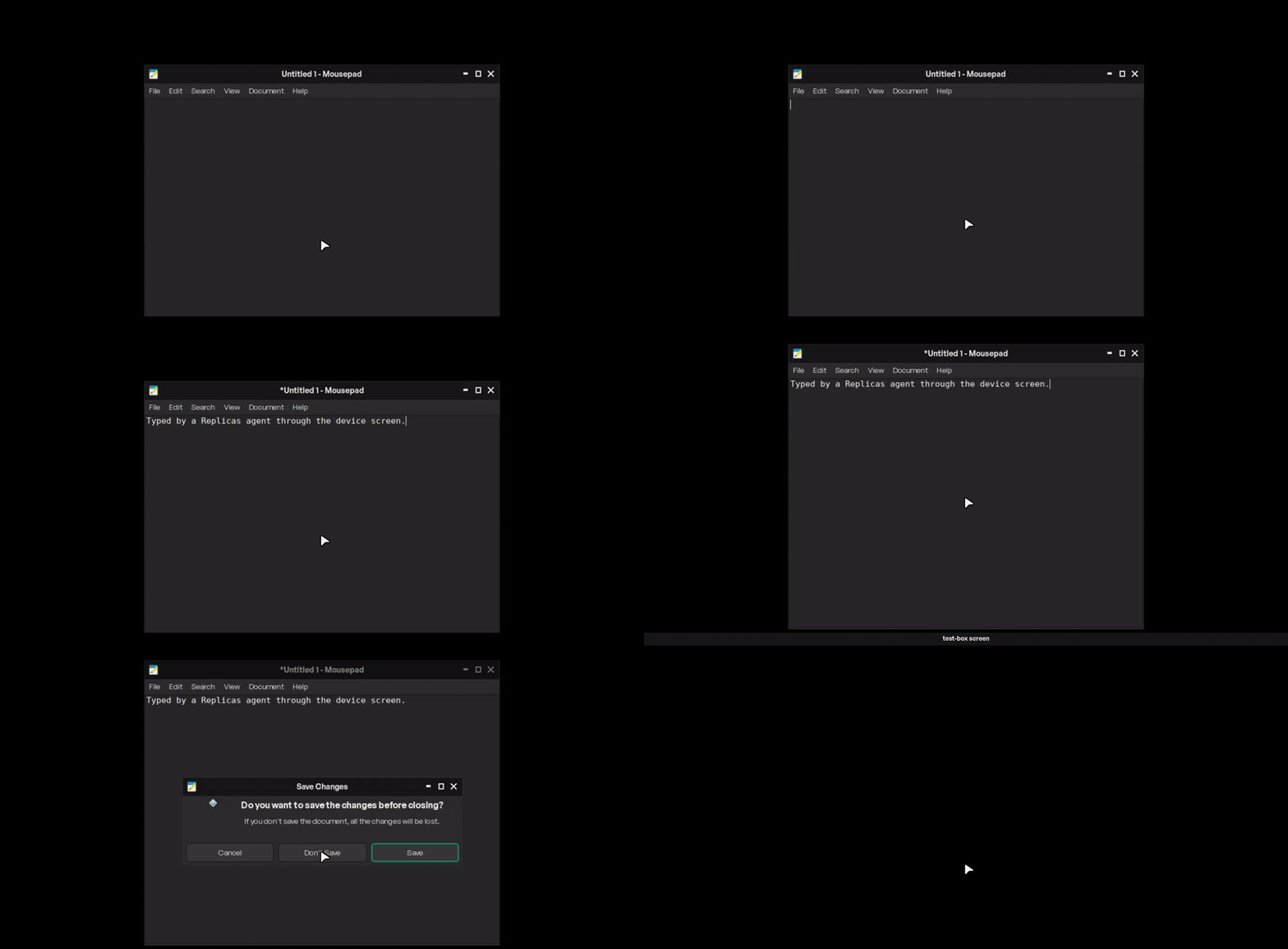
This is what that looked like in our test. The agent opened the device's screen, clicked into a text editor, typed a line, then quit the editor without saving:
Typical reasons to add a device:
- Testing on real hardware. A simulator or a cloud VM isn't the machine your users have. An agent can reproduce a bug on the laptop where it was reported, or run the app on a physical Mac.
- Mac-only tools. Xcode, code signing with certificates in your Keychain, Safari, and apps that only exist for macOS. Cloud Xcode covers plain builds, but not anything tied to your own Mac's setup.
- A Mac mini or build box at home. If you already keep one running, agents can use it for long builds or jobs that need its disk, GPU or locally running models.
Three ways to connect a device
When you add a device, you choose how workspaces reach it. The first option needs nothing but one command on the device. The other two suit computers that are already reachable over a network.
| It connects to Replicas | Tailscale name | Public address | |
|---|---|---|---|
| What runs on the device | npx -y replicas-cli device connect, left running (needs Node.js 18 or later) | Tailscale, signed in to your tailnet | Only the SSH server |
| Open ports or VPN | None. The device makes the outgoing connection | Your tailnet. Each workspace joins it as a temporary node | SSH must be reachable from the internet |
| When agents can reach it | Only while the command runs | While the device is on your tailnet | While the address answers |
| Extra setup in Replicas | None | A reusable, ephemeral Tailscale auth key in the environment's Devices settings | None |
| Good for | A laptop, or a Mac mini behind a home router | Machines already on your tailnet | A server with a fixed public address |
Our pick for most people is the first option. It works behind any home or office router, and you decide when the device is reachable by starting or stopping one command. For Tailscale, the setup screen suggests giving the auth key a tag such as tag:replicas, so you can use Tailscale's access rules to limit what workspaces can reach on your tailnet.
Set up a device
You need a Replicas environment to add the device to. Workspaces started from that environment, and from its forks, get the device.
1. Turn on Remote Login. On a Mac, open System Settings → General → Sharing and turn on Remote Login. On Linux, run an SSH server.
2. Add the device. Open the environment's settings, choose Devices, and click Add device. Pick how workspaces reach it, give it a name, and enter the account the agent signs in as. The form shows a command that prints that account name if you're not sure.
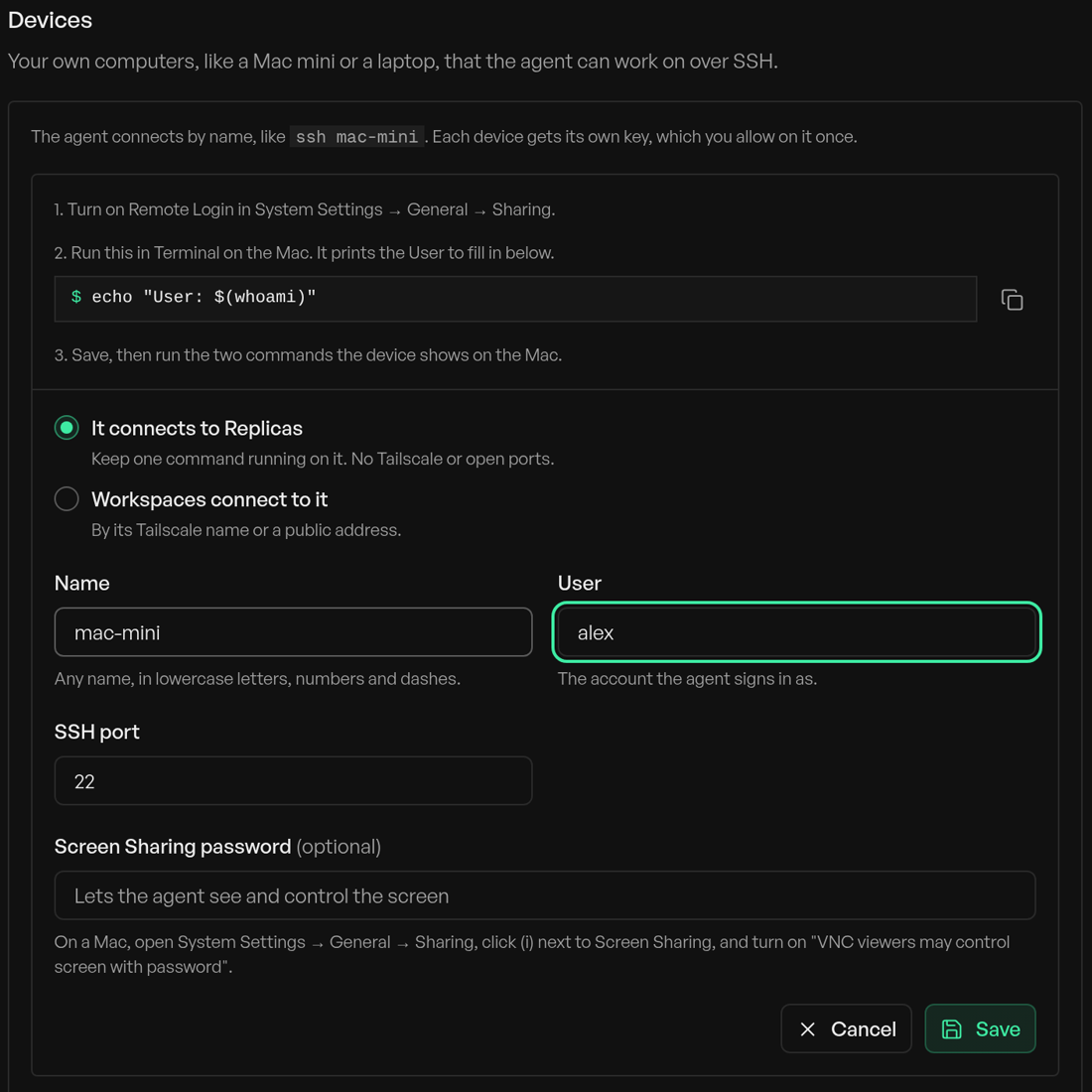
You can do the same from the CLI. Leave out --host for a device that connects to Replicas:
3. Allow the device's key. Replicas creates an SSH key for each device and shows a command to run on it, which adds the public key to ~/.ssh/authorized_keys. For a device that connects to Replicas, it also shows a token.
4. Connect it. For the first option, run this on the device, paste the token when it asks, and leave it running:
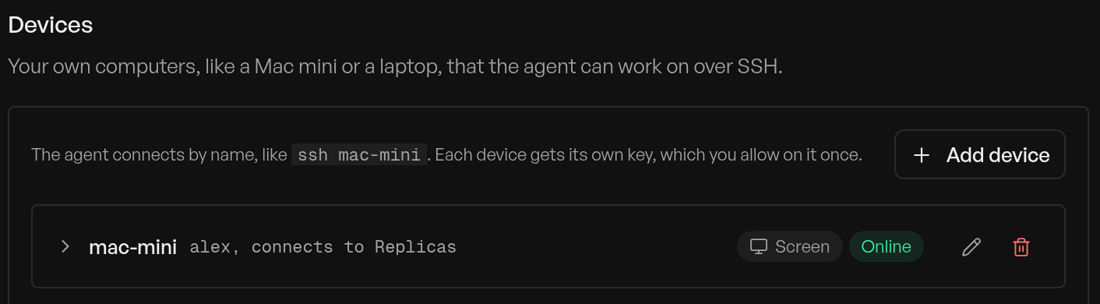
In our test it printed ✓ test-box: ready for 0 workspaces, forwarding to SSH on port 22, and the count went up as workspaces with the device started. While the command runs, the device shows Online in the Devices settings:
5. Start a workspace and ask. Start a new workspace in the environment and tell the agent what to do on the device by name. Workspaces that were already running when you added the device don't get it, so start a new one.
Screen control
To let the agent see the screen of a Mac, open System Settings → General → Sharing and turn on Screen Sharing. Click (i) next to it and turn on VNC viewers may control screen with password. Enter that password in the device's Screen Sharing password field, either when you add the device or later with the edit button. The agent reaches the screen through its SSH connection, so you don't open the Screen Sharing port to the network.
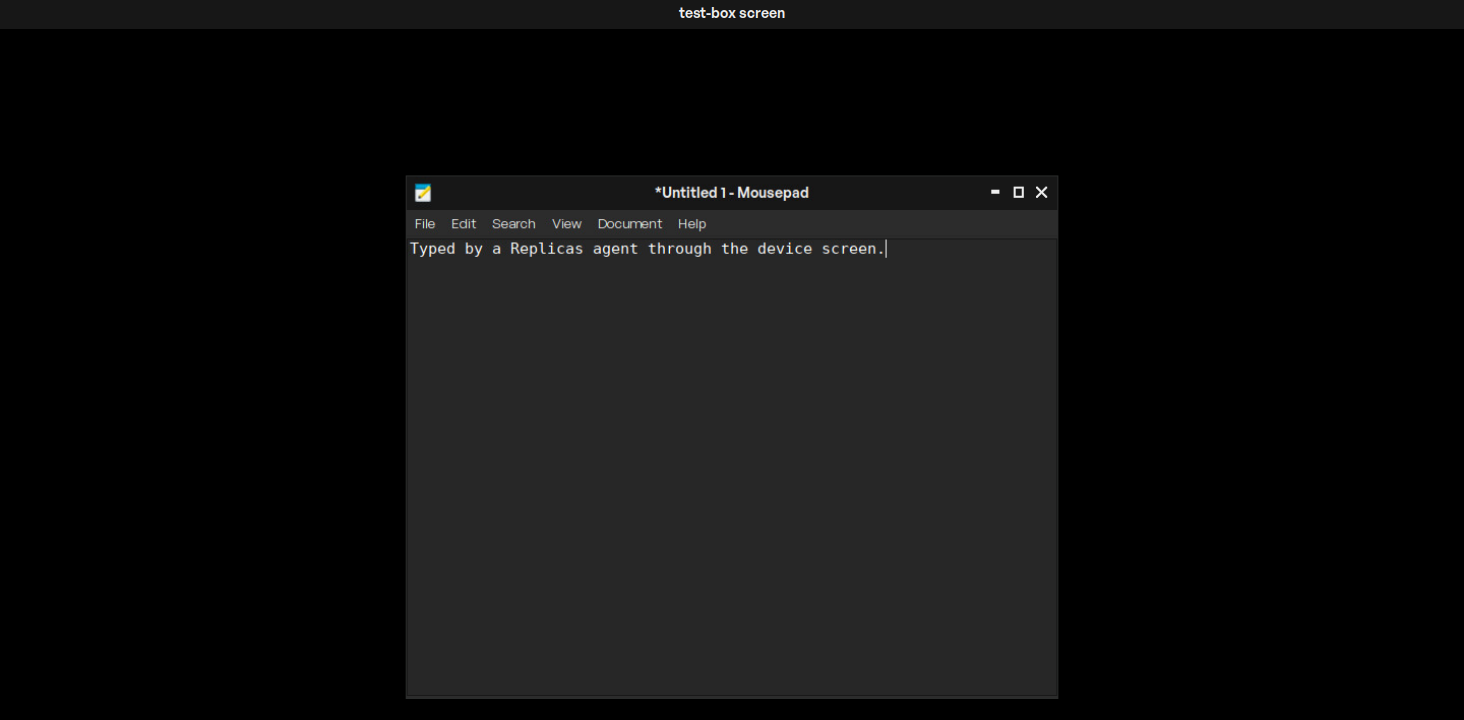
Here is the device's screen after the agent typed into the editor, as it appears on the workspace desktop:
Changing a device and checking it's reachable
To change a device's name, account, port, address or Screen Sharing password, click its edit button in the Devices settings or run:
Editing keeps the device's key and connect token, so you don't have to set it up again on the device. The one exception is changing the account: also add the device's public key to that account's ~/.ssh/authorized_keys. Like adding a device, the change reaches workspaces started afterwards.
For a device that connects to Replicas, the Devices settings and replicas env devices list show whether it's online. When we stopped device connect, the list showed offline, last seen just now within a minute, and ssh from a workspace failed with Connection timed out during banner exchange. Agents are told that this error means the device is offline, so they ask you to start the command again. Devices reached by a Tailscale name or a public address don't show a status.
rsync has to be installed on both ends. Workspaces include it, and macOS comes with it. Our Linux test device didn't have it at first, so the first copy failed until we installed the rsync package there.
What access the agent gets, and how to take it back
An agent connected to a device can do whatever the account it signs in as can do: read and change files, run programs, and use that account's logged-in sessions. With a Screen Sharing password, it can also click and type anywhere on the screen. Replicas tells agents that devices are personal machines and to ask before anything destructive, but nothing technical stops an agent from going further, so pick the account with that in mind. A separate macOS user for agent work keeps your own files and browser sessions out of reach.
A few more details:
- Everyone who uses the environment gets the device. A device in a team environment is reachable from every teammate's workspaces in it, and from its forks. To keep a laptop to yourself, add it to a personal environment.
- The private key stays with Replicas. It never leaves Replicas and the environment's workspaces, and each device has its own key.
- Removing a device works in two steps. Removing it deletes its key from Replicas, so new workspaces don't get it. For a device that connects to Replicas, removing it also cut off workspaces that were already running in our test:
device connectstopped withThis device was removed from its environment, and the nextsshfrom a running workspace timed out. For Tailscale and public-address devices, workspaces that are already running keep the key. In every case, also delete the device's line from~/.ssh/authorized_keyson the device. - A leaked token can be replaced. If a connect token leaks or you reinstall the device, click Reset connection (or run
replicas env devices reset) and rundevice connectagain with the new token.
Questions
Does Claude Code run on my Mac? No. The agent runs in its cloud workspace and only sends commands to your Mac over SSH. Your Mac doesn't need Claude Code, Codex or an API key installed.
Does it work with Linux or Windows computers? SSH works with any computer that runs an SSH server. We tested a Linux machine, but not a Mac. Screen control needs a VNC server on port 5900, which macOS Screen Sharing provides and which you can run on Linux. We didn't test Windows.
Does the device need to stay on?
Yes. Agents can only reach a device that's awake and connected. With the first option, that also means the device connect command is running, which the Devices settings show as Online. A Mac mini set to never sleep is the most dependable setup.
What if I don't have a Mac for iOS work? You don't need one for most builds. Every Replicas workspace can use cloud Xcode and iOS simulators, and our Mac mini guide works out when buying a Mac costs less.
To try it, add a device in any environment's Devices settings. The Devices docs list every option and CLI command, and Replicas' free trial includes $100 of usage with no card required.